4 - Assigning and Creating Teacher Profiles
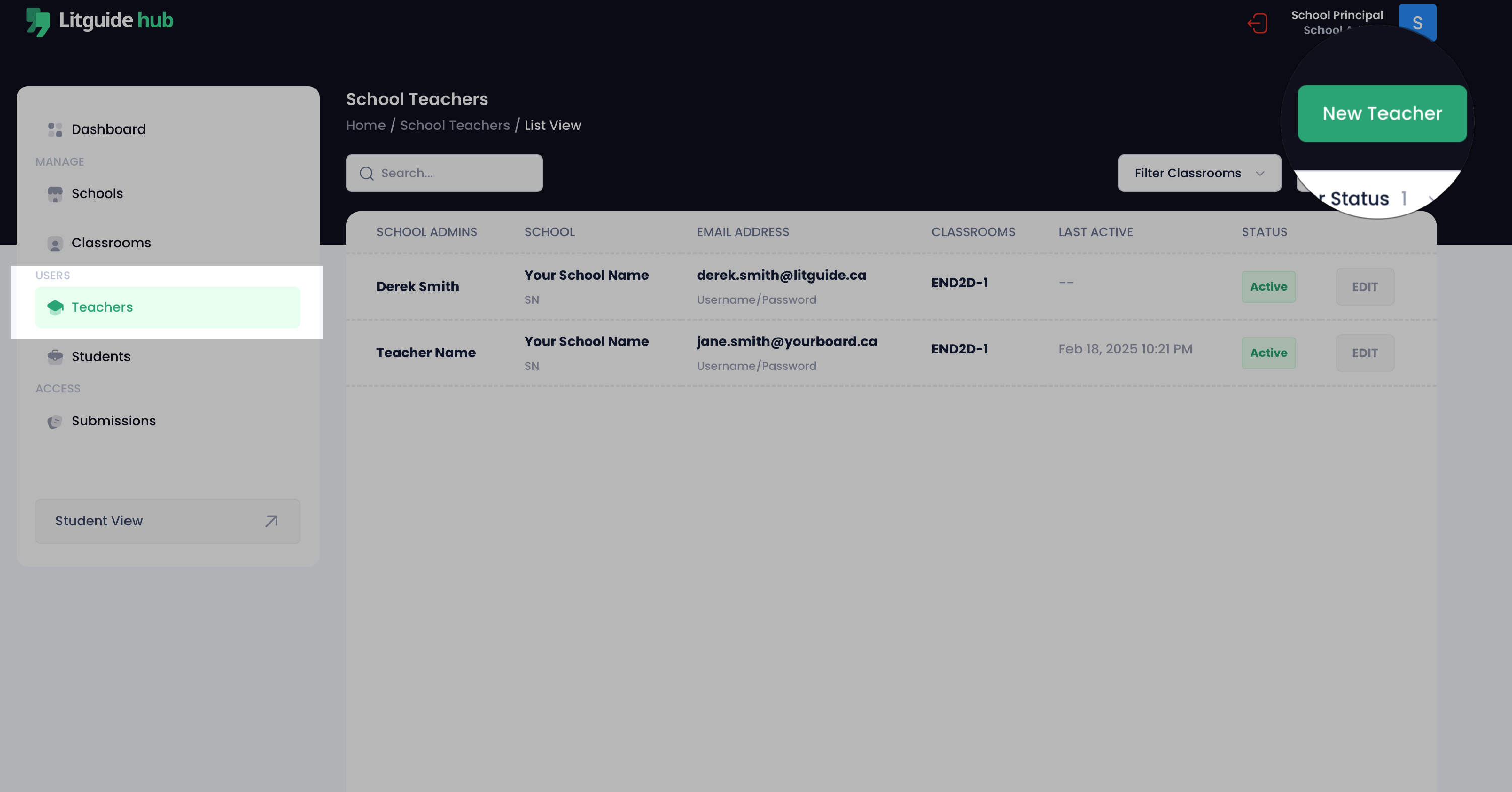
Now that the classroom is set up, the next step is to create or assign a teacher. Go to the Teachers tab and click 'New Teacher'
2.2 Enter Teacher Details
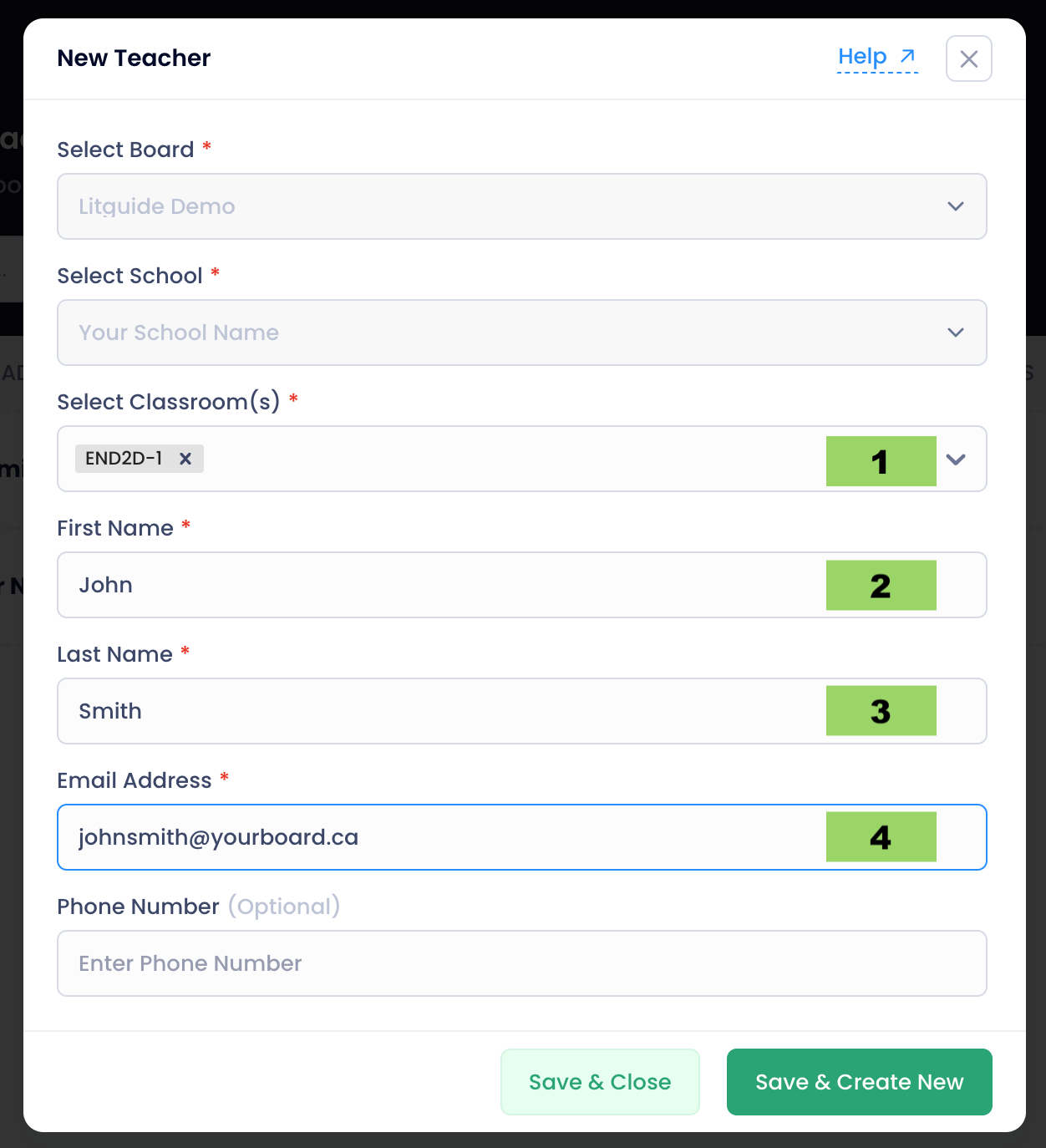
Fill in the following fields:
1. Select the classroom(s) where you want to assign this teacher. Select the classroom(s) where you want to assign this teacher.
- Enter the teacher’s first name in the corresponding field.
- Enter the teacher’s last name in the corresponding field.
- Enter the teacher’s board email to send their invite with the classroom setup.
-
Save & Close’ to create your classroom.
You can assign multiple classrooms to a teacher by accessing edit button after creation.

Teachers must distribute redeem codes from the Classroom Creation tab to students during sign up.
2.3 Teacher Invite
- After adding the teacher, they will receive a classroom invite at the email address you entered. The invite will look like the example below.
- The teacher must sign up and create a password. They can access the Hub and set their password directly from the link in the email.
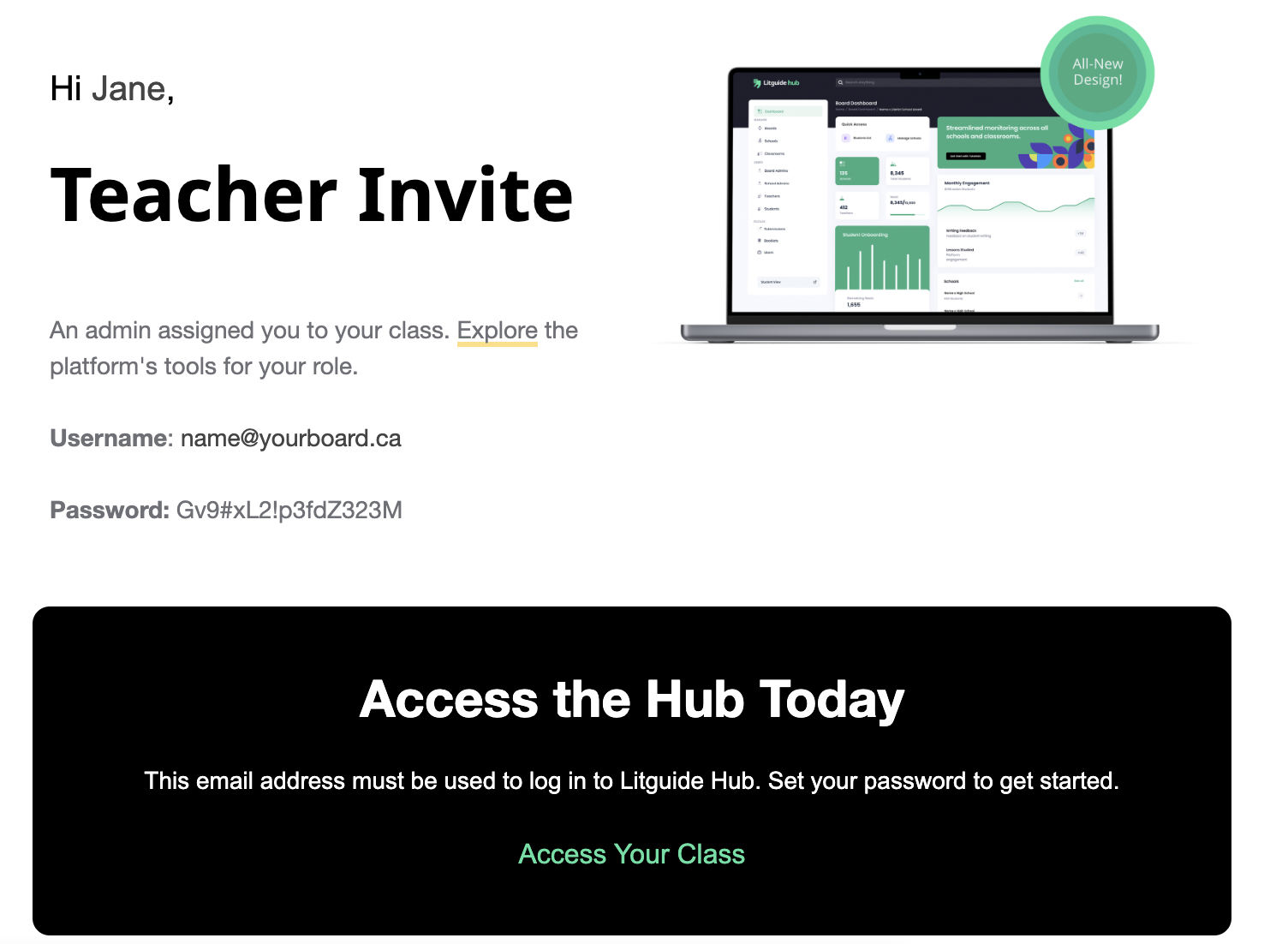
Invites are valid for 60 minutes—if the invite expires, they can click 'Resend Link' to generate a new one. No further action is required on your end.